
How to Cast Cineby From Phone to TV? [Updated 2026]
Cineby doesn’t resemble only a streaming app; it’s more like a library of movies and TV shows where a wide variety of films and shows are neatly organized, letting users pick their favorite ones and stream for free. If you want to cast Cineby from your phone to your TV to enjoy a movie on your bigger screen device without having to install the Cineby app on your television, then this guide covers everything you need to do for it.
Upon opening, an organized layout presents quick search, trending rows, and clean info cards. Title pages offer essential details such as trailer, cast, summary, ratings, and viewing options. Watch selections are a highlight.
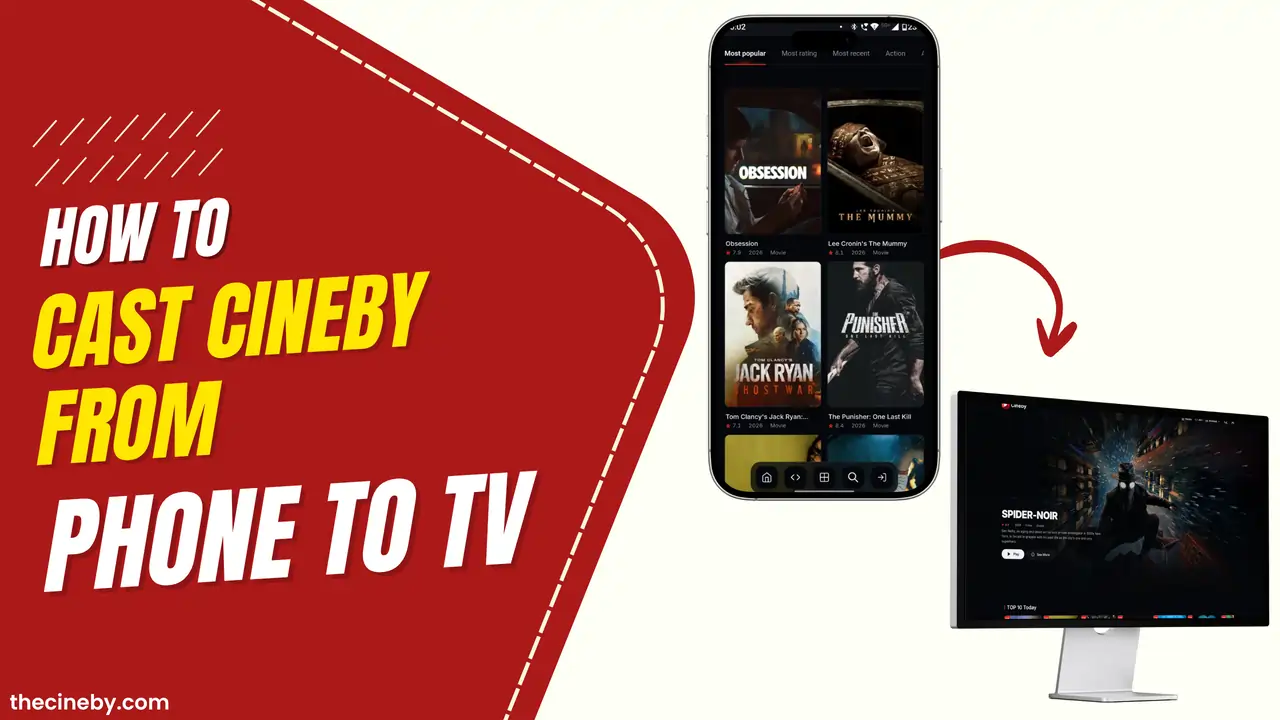
Does the Cineby Support Chromecast?
Cineby is a free app offering diverse global cinema, including films, web series, and docuseries. The app is well-versed and does not include any ads or pop-ups. The Cineby app is Chromecast compatible, enabling immersive home streaming. Wirelessly mirror this app directly to your TV screen via Chromecast and cast any movie from Cineby to enjoy films on a bigger screen.
Things to Do Before Casting the Cineby to TV
1. Install Updated App
Users should ensure that the person using the Cineby app has installed the current version of the app; otherwise, the servers won’t work properly or entirely at all. You can also use the Cineby web on your phone, which works perfectly fine for casting videos from it to TV.
2. Both Devices Are on the Same Wi-Fi
It is recommended that the user connect both their smartphone or tablet and the Chromecast device on the same WiFi router that provides a seamless connection to their devices and gives them an immersive cinematic experience at home. The user should make sure to use the same WiFi connection on their devices at home for smooth streaming on their smart TV.
3. Check If Your TV Supports Chromecast
To use Chromecast, ensure your TV supports it or connect a Chromecast device via an HDMI port. Once set up, you can cast content or mirror your phone screen. For the easiest streaming, a smart TV with built-in Chromecast is ideal, as most modern Android TVs already come with it.
Detailed Guide on How to Cast Cineby to Your TV (Using Chromecast)
To achieve this, you must have a TV that comes with a built in chromecast faeture. Upon doing so, the setup is ready, and here is the guide that one has to follow up on.
- Firstly, you need to have the latest version of Cineby installed on your phone, or you can use the Cineby web portal that works as well for Chromecat.
- Ensure that both devices are connected to a WiFi router beforehand so that the upcoming producers can be followed seamlessly.
- Launch the Cineby app and simply locate the movie or series you want to watch and cast to your TV.
- Tap on the Play icon tos tart streaming the video, then play it in full-screen mode.
- Now, tap on the Chromecast icon on the top right and select your TV model name that shows on the screen.
- Wait for a few seconds until it is paired successfully, and you will have the Cineby successfully cast to your TV screen afterwards.